Full by 4 PM: Giving Your Powerwall a Deadline Instead of a Schedule
Every Powerwall owner on a time-of-use plan is really asking one question: will the battery be full when the expensive hours start? We couldn’t find anything that answers it, so we built the thing that does.
The Question Your Apps Don’t Answer
It’s 8:30 on a gray October morning. Your plan’s peak starts at 4 PM and runs until 9, and the whole point of the battery on your wall is to carry the house through those five hours. The Tesla app tells you the charge right now: 36%. It doesn’t tell you where that number will be at 4 o’clock, and it has no setting for “be full by then.”
So people do what the tools allow. They set a rule that grid-charges the battery at a fixed hour. They raise the backup reserve and leave it there. Or they check the app all afternoon and nudge things by hand. All three work by the clock, and the clock doesn’t know what the sky is doing.
Clock Rules Get It Wrong Both Ways
Take the most common one: “at 1 PM, charge to 100% from the grid.” On a sunny day it buys grid power your panels were about to make for free, and the solar that would have filled the battery spills out to the grid instead. Under California’s NEM 3.0 and other net billing plans, that export earns a fraction of what the grid charge cost. On a dark day the same rule can start too late, and the peak begins with a battery that isn’t full.
The blunt alternative, a high backup reserve all day, is safe and expensive. A battery that’s holding its reserve isn’t running your house, so the grid runs it instead, all day, including the hours when you were hoping the Powerwall would help.
What you actually want to say is simpler than any of that: have it at 100% by 4 PM, and only use the grid if you have to.
Why That’s Harder Than It Sounds
To act on a deadline instead of a clock, something has to know, all day long:
- how much sun your roof will see between now and the deadline, and how today is actually going compared to the forecast;
- how your house uses power hour by hour, because every kilowatt-hour the home uses is one that doesn’t go into the battery;
- how your particular battery charges: how much energy each percent holds, how fast it fills from solar and from the grid, and how it slows near the top;
- what your other automations are about to do, because a rule that changes the reserve at 2 PM changes the whole afternoon.
Then it has to turn that into a decision, change its mind when the clouds do, and put everything back exactly as it found it afterwards, without stepping on a change you make yourself halfway through. That’s a forecasting problem and a control problem at the same time, which is why it hasn’t existed.
What Exists Today
The Tesla app gives you a backup reserve, three operating modes and Storm Watch, and in Savings mode Tesla’s own optimizer decides when to charge and discharge based on your rate plan. It’s good at what it does, but there’s no way to give it a target and a time. Third-party Powerwall automation apps, including the ones we compare ourselves to, let you trigger actions on the clock, the battery level, prices or the weather, and change the reserve, the mode or grid charging. You can build “charge to 100% at 1 PM if the forecast looks bad” with them, but you still pick the hour and the threshold yourself, and nothing works out how much grid energy today actually needs, or the latest moment to start. A determined Home Assistant user can wire a solar forecast into templates and get part of the way there, if they’re willing to build and maintain the forecasting themselves.
As far as we can tell, nothing else today lets you say “X% by this time” and works out the rest: how much solar will cover, whether the grid is needed at all, and when to start.
How SolDial Does It
It starts with the Battery Forecast, a new section on the SolDial dashboard. Every few minutes it plays your next 24 hours forward, minute by minute, using your home’s own history, your solar forecast, what it has learned about your battery, and your own automations replayed the way the automation engine would run them. The result is a line you can read at a glance: when the battery will be full, when it will reach the reserve, and what changes along the way. It’s free for every Powerwall owner.
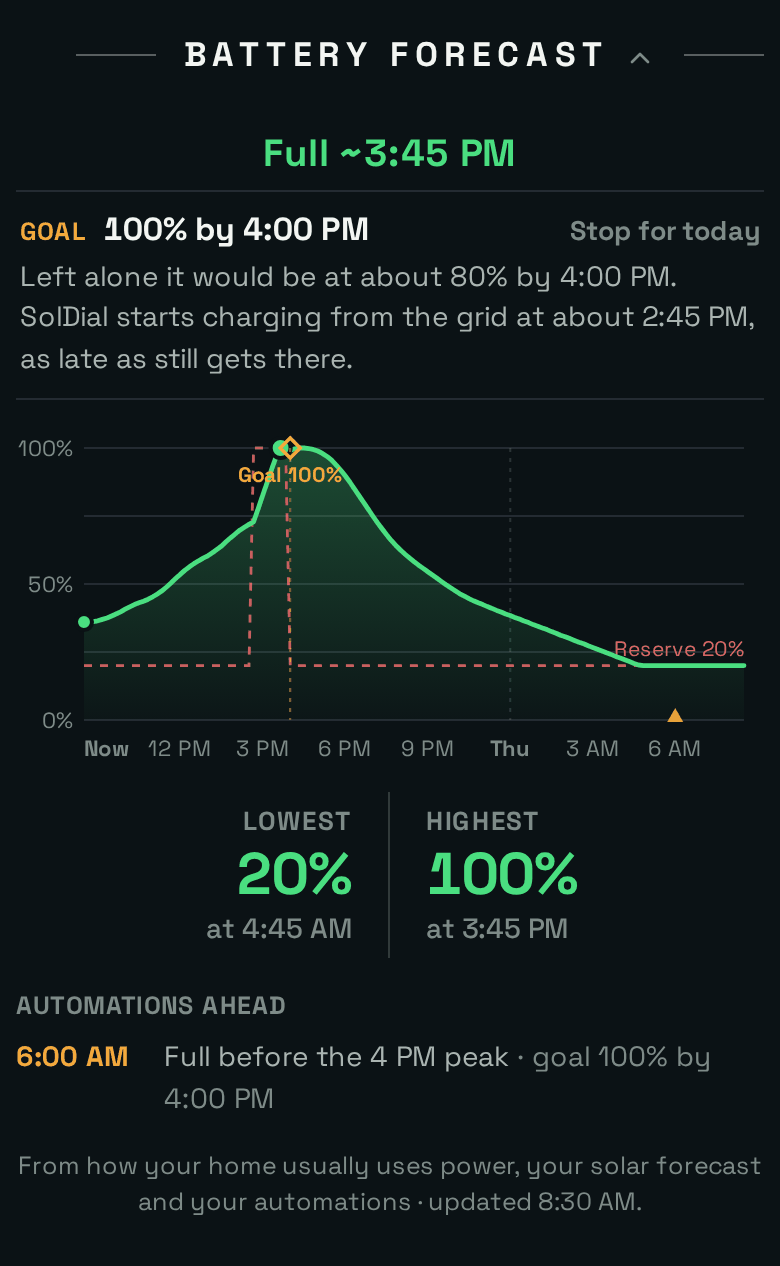
That gray morning, in SolDial. Solar alone would get to about 80% by 4 PM, so the plan is a short grid top-up starting around 2:45 PM.
On top of the forecast sits the new automation action, a battery goal: have the Powerwall at 100% by 4 PM. You set the target and the deadline, the way you would tell a person. SolDial does the rest:
- Solar first. Every five minutes it reruns the forecast with your goal in it. If solar alone gets there in time, the grid is never asked.
- Grid only for the shortfall, as late as it safely can. When solar falls short, it finds the latest start that still makes the deadline. That keeps grid energy to a minimum and gives the morning’s sun every chance first.
- Held when it counts. Close to the deadline, once the battery reaches the target, SolDial holds it there.
- Put back afterwards. At the deadline your reserve goes back to where it was, and grid charging goes back off if SolDial switched it on. You hear about it if the goal falls short.
- Your changes win. Move the reserve yourself, in SolDial or in the Tesla app, and the goal stands down for the day and leaves your setting alone.
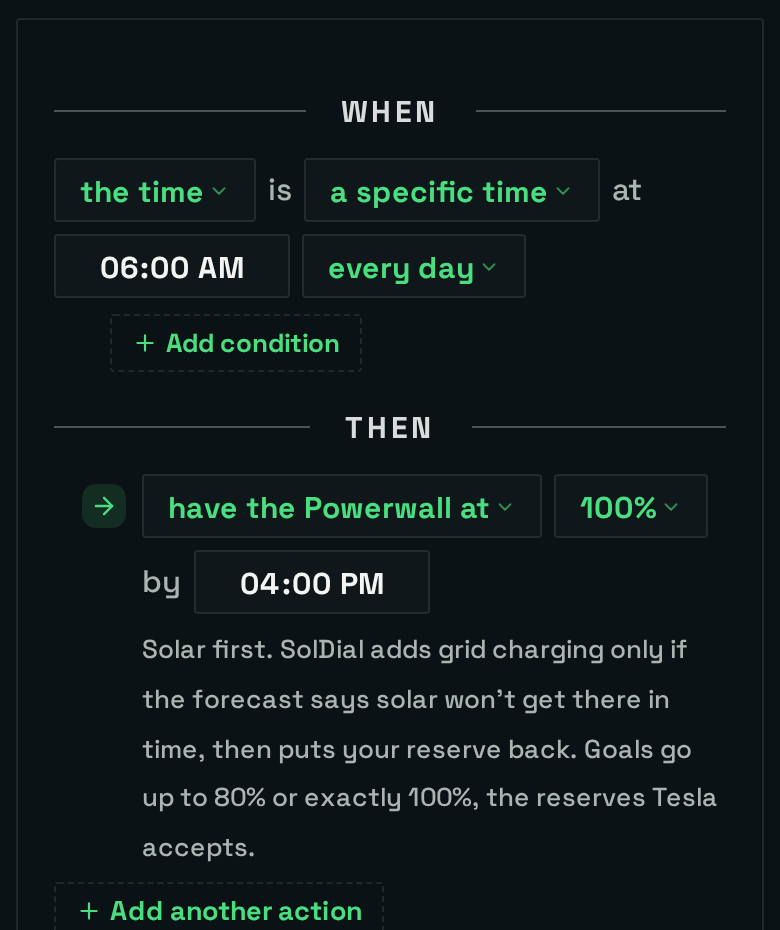
The whole setup: one rule. You can also just type “have my Powerwall full by 4 PM on weekdays.”
Same Rule, Two Different Days
On the cloudy day above, the goal buys about 3 kWh from the grid in the hour before the peak, and nothing before that. On a sunny day, the same rule does almost nothing: the battery fills on solar before lunch, SolDial holds it full for the last few hours, and not a single kilowatt-hour comes from the grid. A clock rule fires at the same time on both days, and on all the days in between, when solar would have finished the job by mid-afternoon, it buys grid power nobody needed.
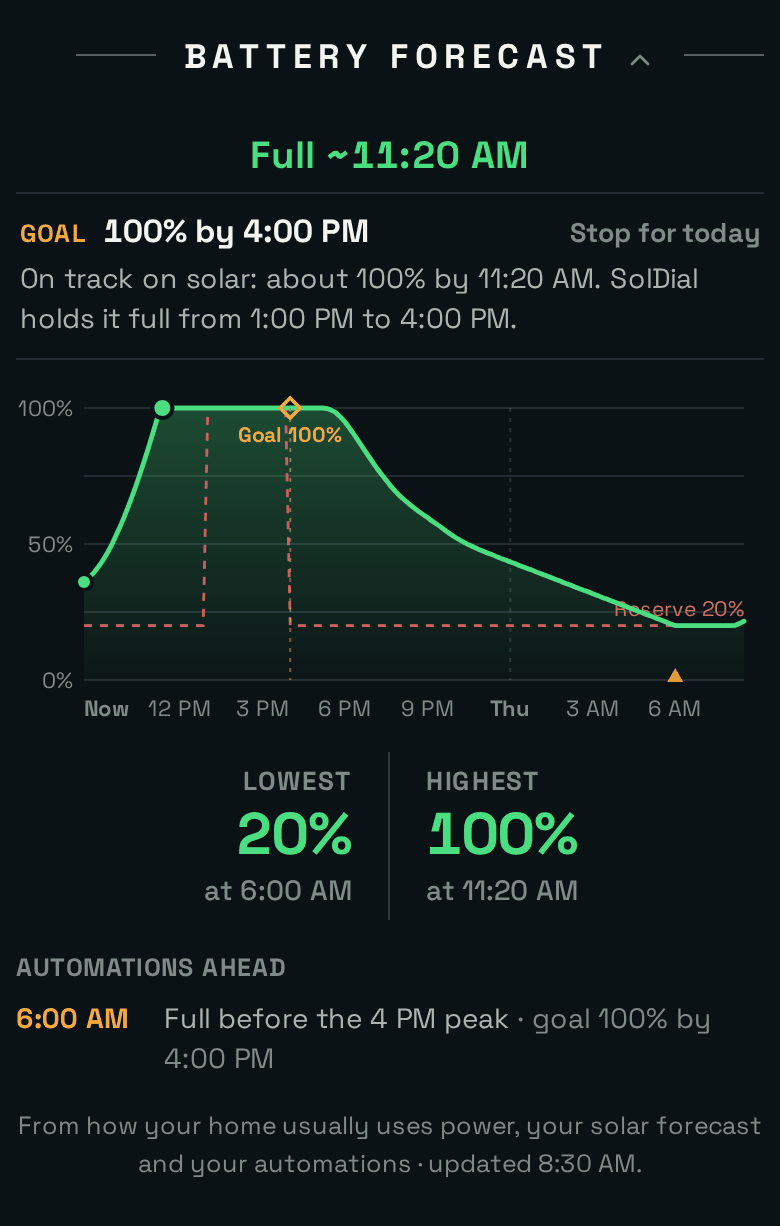
A sunny day, same goal: full on solar, held from 1 PM, no grid at all.
The Honest Limits
A forecast is a forecast. In our tests across 60 homes, the predicted time to full was typically off by about 35 minutes and the time to reserve by about 45, mostly because of weather and household surprises rather than the battery math. That’s why the plan builds in a 20-minute margin and reruns every five minutes, catching up as soon as reality moves.
A few more things worth knowing. Grid help needs your permission: if you haven’t told SolDial your utility allows charging the Powerwall from the grid, a goal works on solar alone and says so. Tesla only accepts a backup reserve of up to 80% or exactly 100%, and a goal works through the reserve, so targets are 10 to 80% or 100%. Each system runs one goal at a time. Autopilot doesn’t set goals for you yet; for now you set them. And battery goals are part of SolDial Pro, while the Battery Forecast is free.
Try It
The full walkthrough, including how to read the forecast and what happens minute by minute during a goal, is in the guide: Battery Forecast & Battery Goals. If you’re new to SolDial, start the free trial, set one goal before your next peak, and watch the forecast work it out.