Battery Forecast & Battery Goals
See where your Powerwall’s charge is headed over the next 24 hours, then tell SolDial where it needs to be and by when: “100% by 4 PM.” SolDial gets there on solar first and adds grid charging only when the forecast says solar won’t make it in time.
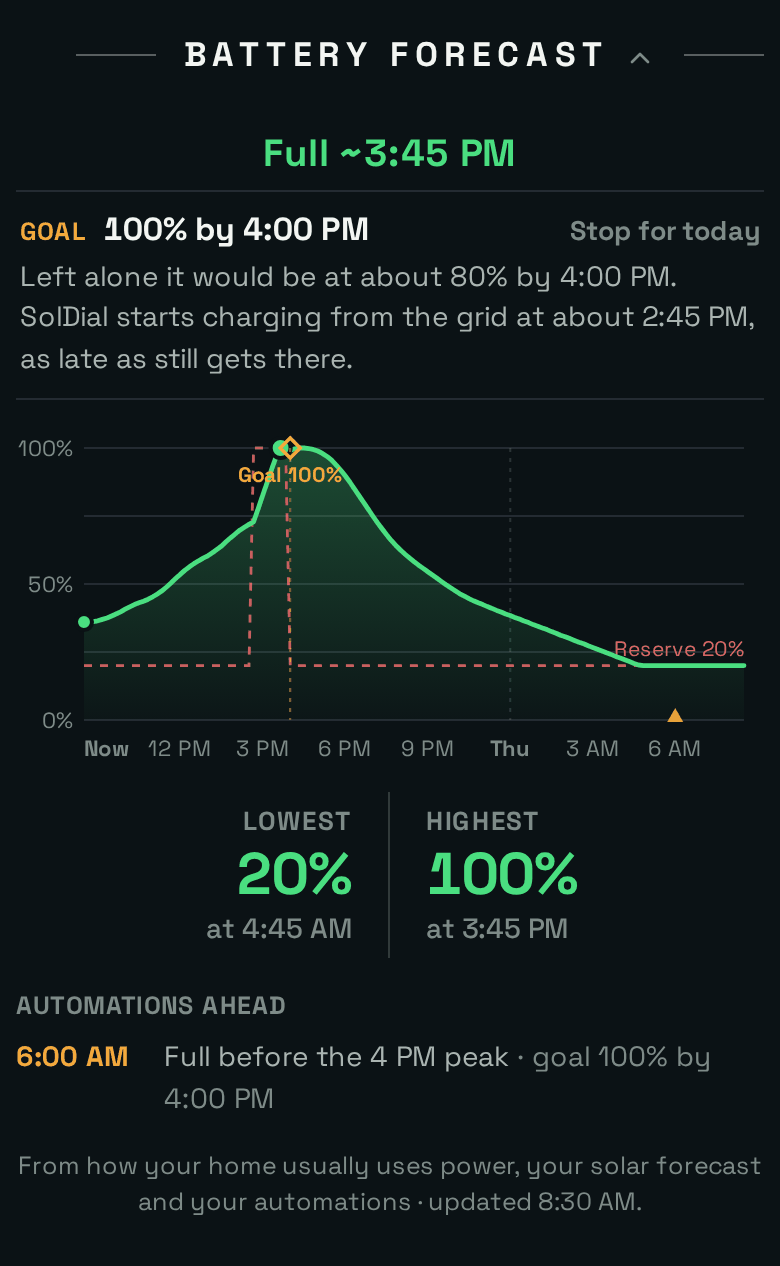
A cloudy October morning. Solar alone would leave the Powerwall at about 80% by 4 PM, so SolDial plans a short grid top-up starting around 2:45 PM. The battery is full by 3:45 PM, in time for the evening peak.
What It Is
Two features that work together:
- The Battery Forecast is a section on your Dashboard. It plays the next 24 hours forward, minute by minute, and draws the charge your Powerwall is headed for: when it will fill, when it will reach your reserve, and what your automations will change along the way. The same headline appears on the dial, under the Powerwall. It’s free for every Powerwall owner.
- A battery goal is an automation action: have the Powerwall at X% by a time. Instead of telling the Powerwall what to do at a fixed hour, you tell it where to be, and SolDial works out when, and whether, it needs the grid. Battery goals are part of SolDial Pro.
Why It Exists
Most people who think about their battery care about one moment: full before the evening peak, full before a storm, enough charge to carry the house through the night. The usual tools for getting there work by the clock. A rule that grid-charges to 100% at 1 PM does it on a cloudless day too, buying grid power your panels were about to make for free and pushing that solar out to the grid at export rates. On a dark day the same rule can start too late. Raising the backup reserve and leaving it high is safe but costly: the battery stops carrying your home, so the grid carries it all day.
What you actually want to say is “have it at 100% by 4 PM, and only use the grid if you have to.” Answering that takes a forecast of your house, your solar and your battery, rechecked all day as the weather changes. The Tesla app gives you a backup reserve, operating modes and Storm Watch, but no way to set a target for a time. That’s the gap this fills.
How It Helps
- Know what’s coming without doing the math. “Reserve ~2:15 AM” or “Full ~3:45 PM” tells you at a glance whether tonight is covered.
- Less grid charging. On a sunny day a goal is met on solar and the grid is never asked. On a cloudy day SolDial buys only the shortfall, as late as it safely can, so solar gets every chance first.
- Ready when it matters. Full before a time-of-use peak, before a storm, before a demand-response evening: whatever your deadline is.
- See your automations before they run. The forecast replays your own rules, so you can see what tonight’s reserve change will do to the battery before it happens.
- You stay in charge. Stop a goal for today with one tap, and a change you make yourself always wins.
Reading the Battery Forecast
The section sits on the Dashboard below the Energy Chart (on the web, after Today’s Solar Pace). Like every Dashboard section, you can collapse it or drag it somewhere else.
- The headline is the next thing your battery is heading for: Full ~3:45 PM, Reserve ~2:15 AM, Dips to ~62% at 6:10 PM (the low point before it charges again), Peaks ~84% today, Holding full, or At reserve · refills ~9:40 AM. Tap it to switch between a time and a countdown (“Reserve in 5h 20m”). Times are rounded to 5 minutes when they’re near and 15 minutes when they’re further out.
- The goal, when one is running: its target and deadline, one or two sentences on what SolDial is doing about it, and Stop for today (or Resume after a stop).
- The chart. The green line is the charge SolDial expects over the next 24 hours. The dashed red line is your backup reserve; it steps up while a goal holds it. The green dot marks the moment the headline talks about. Gold triangles along the bottom are automations due to run, and a gold diamond marks a goal’s target at its deadline.
- Lowest and Highest: the lowest and highest charge in the next 24 hours, and when.
- Automations ahead: your next rules that change the battery, with what each one will change.
- Not in the forecast: rules nobody can predict ahead of time, like ones that wait for a car to plug in, a VPP event or a live price, are listed by name instead of guessed at. If your automations follow hourly prices, the curve fades after the next three hours, because what happens then depends on prices that aren’t known yet.
The headline also shows on the dial under the Powerwall’s power. You can turn that line off in Settings → Display → Time to Reserve.
How the Forecast Is Made
While the section is on screen, SolDial refreshes the forecast every five minutes. Each time, it plays the next 24 hours forward one minute at a time, starting from your Powerwall’s live charge, reserve and mode, using:
- How your home uses power, learned from the last two weeks of your own data by time of day, with weekdays and weekends kept apart and recent days counting most. If the house has used more or less than usual over the last few hours, the forecast scales to match.
- Your solar forecast, the same hour-by-hour forecast your automations use (see Solar forecasts), adjusted by how today is actually going so far.
- How your battery behaves, also learned from your data: how much energy each percent holds, how fast it charges and discharges, how fast it tops up from the grid, how it slows down near full, and where Tesla parks a battery that’s told to stay full.
- Your automations, replayed with the same logic the automation engine uses, in the order they would run. A rule that raises your reserve at 9 PM shows up at 9 PM.
A new system needs about a day of data before the first forecast appears. Free accounts get the forecast too; it just has no automations to replay.
How Accurate Is It?
We checked the forecast against what really happened in 60 homes over a week, about 2,100 forecasts. In a typical case, the predicted time to reach the reserve was off by about 45 minutes, the predicted time to full by about 35 minutes, and the predicted charge four hours ahead by about 2 points. When we gave it the solar and home use that actually happened, the timing misses shrank to about 13 minutes. So most of the error is the weather and the household, not the battery math.
What it can’t see coming will move it: a car plugged in out of routine, an unusually hot afternoon, clouds the weather models missed, or Tesla’s own optimizer making a different call in Savings (TOU) mode. Because it reruns every few minutes, it catches up as soon as the change shows up in your data.
Setting a Battery Goal
- Open Automations and tap New automation.
- Under WHEN, pick when the goal starts each day, for example the time is 6:00 AM, every day. That’s also the earliest SolDial may start charging from the grid.
- Under THEN, choose have the Powerwall at, pick a target, and set the by time.
- Save. The goal starts the next time the rule runs; Run now starts it right away.
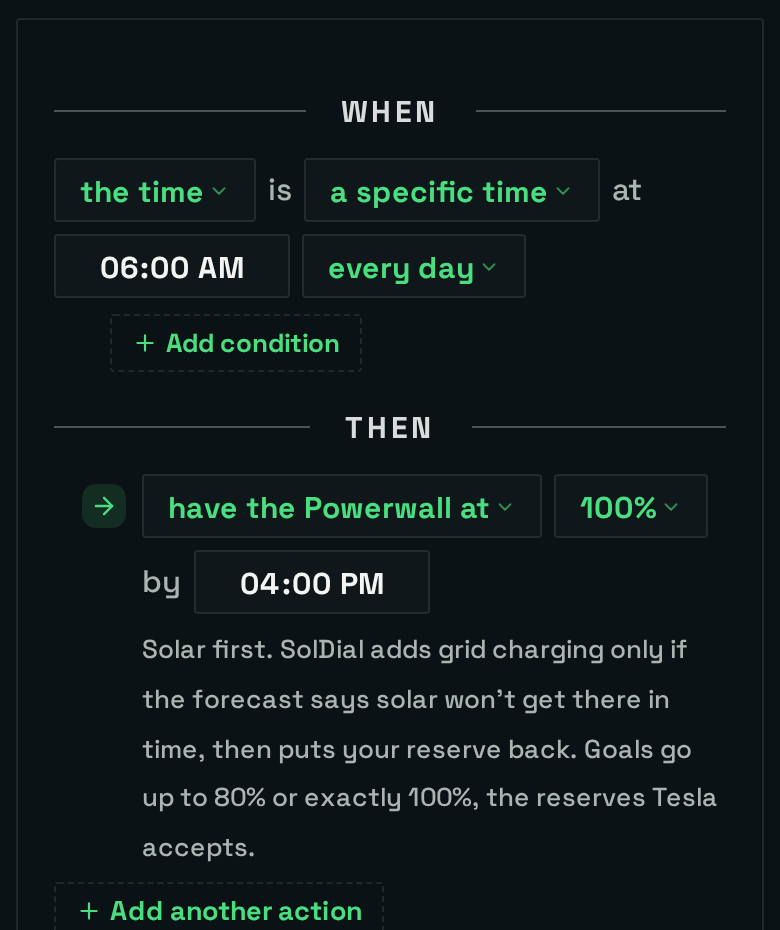
“Every day at 6 AM, have the Powerwall at 100% by 4 PM.”
You can also type it. “Have my Powerwall full by 4 PM on weekdays” in the plain-English box builds the same rule for you to review.
The deadline is the next time your by time comes around after the rule runs, in your home’s time zone. A rule that runs at 6 PM with a 7 AM deadline means 7 AM tomorrow.
What Happens During a Goal
- It plans. Every five minutes, SolDial reruns the forecast with your goal in it. If solar alone gets there with at least 20 minutes to spare, that’s the plan. If not, it finds the latest time it can start charging from the grid and still make the deadline, which keeps grid energy to a minimum and leaves the morning to solar. If even starting now can’t get there, it starts now and tells you how close it expects to get.
- It raises the reserve. At the planned time SolDial sets your backup reserve to the target. That’s what tells the Powerwall to charge: from solar, and from the grid when grid charging is allowed. If you’ve told SolDial grid charging is allowed but Tesla’s grid charging switch is off, SolDial turns it on for the charge and back off afterwards.
- It holds. In the last three hours before the deadline, once the battery reaches the target, the goal keeps it there. Earlier in the day it doesn’t hold, so a battery that fills before lunch keeps doing its normal job, and SolDial tops it back up before the deadline if it needs to.
- It hands back. At the deadline your reserve goes back to where it was, and grid charging goes back off if SolDial turned it on. If the goal fell short you get a notification with where the battery ended up and why; if the rule has Notify on successful run on, you hear about the hits too.
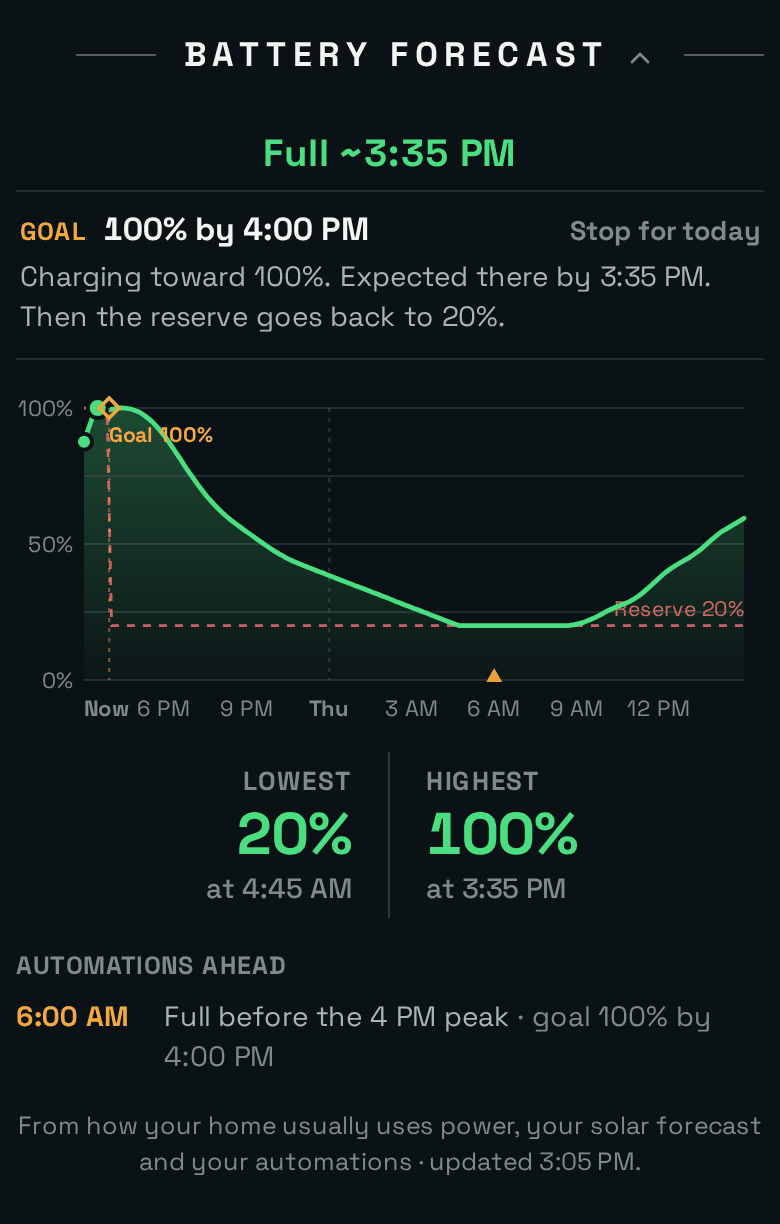
3:05 PM, same day. The reserve is up at 100% and the Powerwall is charging toward the goal. At 4 PM the reserve goes back to 20%.
On a sunny day it looks different: solar gets there on its own, the grid is never used, and the goal simply holds the battery full through the last stretch before the deadline.
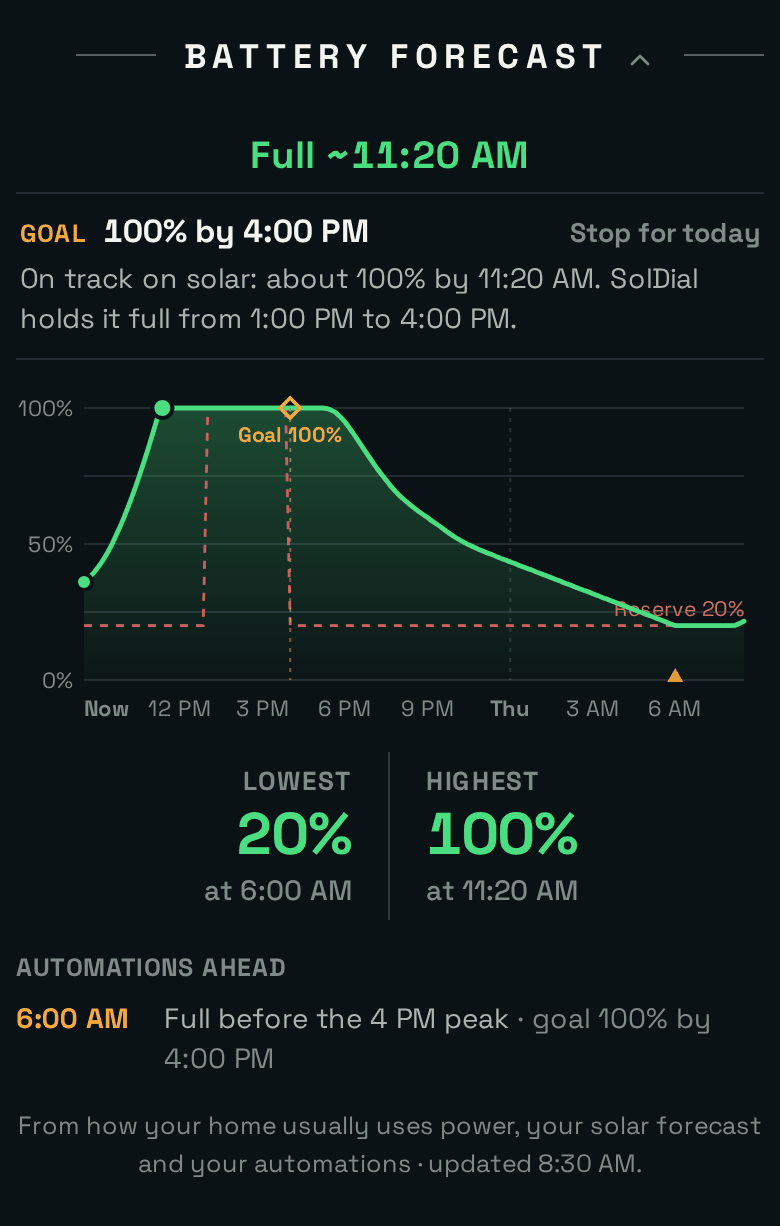
A sunny day with the same goal: full on solar before noon, held from 1 PM, no grid energy at all.
Goals Without Grid Charging
If grid charging isn’t allowed in SolDial (Settings → System Info), a goal works with solar alone. Raising the reserve still helps: it stops the battery from running the house, so solar goes into the battery while the grid covers your home. The goal says so plainly (“Grid charging is off, so SolDial holds the charge from about 1:15 PM”), and the forecast shows how close solar will get. A home without solar always charges from the grid when its reserve is raised, so this doesn’t apply there. See Export & grid-charging permissions.
Staying in Control
- Stop for today. In the Battery Forecast, or in the line above the reserve slider in Devices → Powerwall. SolDial hands your reserve back right away, and the goal returns with the rule’s next run. Resume restarts it if there’s still time.
- Your changes win. Move the reserve slider in SolDial, change the reserve in the Tesla app, or Run now a rule that lowers it, and the goal stops for today and leaves your setting alone. Grid charging goes back off if SolDial had turned it on.
- Other rules wait their turn. While a goal holds the reserve up, a rule that would lower it, or switch grid charging off, is held with a note in its history, and its setting is applied when the goal ends.
- Storms and outages come first. During Storm Watch a goal waits to start, since Tesla is already filling the battery. SolDial never changes settings while your home is running off the grid, so a goal that ends during an outage hands back your reserve once the grid is back.
- Nothing to do? If your reserve is already at or above the target, the goal raises nothing and just checks the result at the deadline.
- No forecast? If SolDial can’t forecast your home at the moment (the Powerwall stopped reporting, or it’s still learning a new system), a goal doesn’t sit idle: it raises the reserve about four hours before the deadline as a safety margin, and says so.
- One goal at a time. Each system runs one goal at a time. If a second goal rule runs while one is active, it’s skipped with a note.
- Editing the rule updates the running goal. Pausing or deleting the rule ends the goal and hands back your reserve.
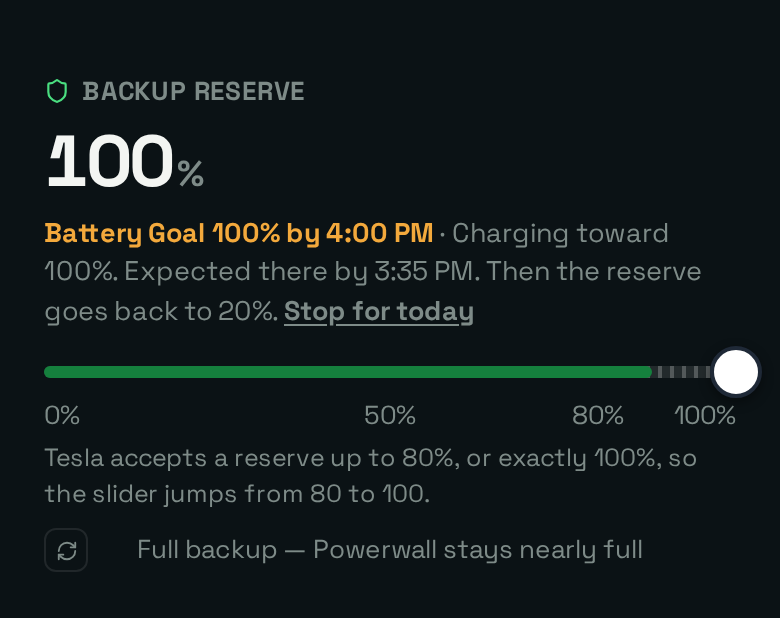
Devices → Powerwall while a goal holds the reserve. The line explains why the reserve reads 100%.
Ideas for Goals
- Before a time-of-use peak: every weekday at 6 AM, have the Powerwall at 100% by 4 PM.
- Before a storm: when the outage risk is high, have the Powerwall at 100% by 6 PM. Pair it with SolDial’s weather and outage-risk triggers (see Automation reference).
- Before a morning peak: on plans that are expensive early in the day, every night at 11 PM, have the Powerwall at 80% by 7 AM.
- A floor for the evening: every day at 10 AM, have the Powerwall at 60% by 5 PM, enough to carry the evening without paying for a full charge.
Questions
Why can’t I pick 90%? Tesla only accepts a backup reserve of 0 to 80% or exactly 100%, and a goal works through the reserve. See the note above.
Does a goal stop the battery from going over the target? No. A goal is “at least.” If solar takes the battery higher, that’s fine.
Will it charge from the grid if I haven’t allowed it? No. Without grid-charging permission a goal uses solar only, and tells you so.
Does it work in every mode? Yes. The backup reserve is respected in Self-Powered and Savings (TOU) modes, and in Backup mode the battery is kept full anyway.
Does Autopilot set goals for me? Not yet. For now you set goals yourself, in the builder or in plain English.
What does it cost? The Battery Forecast is free. Battery goals are part of SolDial Pro.
Why did my goal stop? The goal’s line in the Battery Forecast and the rule’s history both say why, in plain words: for example, you moved the reserve, the rule was paused, or Tesla didn’t accept the change.