Your Powerwall on your wrist and home screen
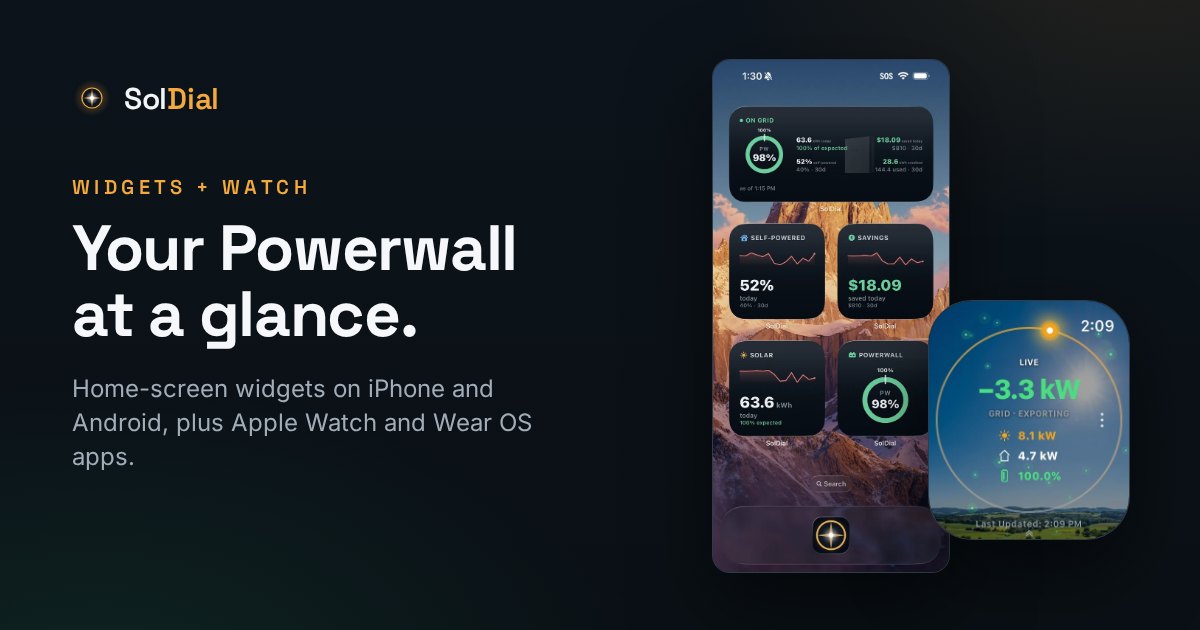
Widgets on iPhone and Android, the live dial on Apple Watch and Wear OS, complications and tiles — the numbers you check ten times a day, without opening an app.
A battery is a thing you check ten times a day. Is the sun paying the bills right now? Did the car charge? How much is left for tonight? None of those deserve an app launch, a splash screen, and a scroll. They deserve a glance.
On the home screen
Energy Glance is the wide widget: your Powerwall charge ring, today's solar against what the forecast expected, money saved, self-powered percentage, and net grid — drawn over a faint silhouette of your Powerwall, with the time it was last updated. It's the dashboard's whole story in one rectangle.
The five single-stat minis are for people who only care about one number: Powerwall Charge, Solar Today, Saved Today, Self-Powered, and Net Grid. Each pairs the live figure with a 14-day trend line that goes green, blue, or red as that number improves, holds, or slips. Pick the one you check most and give it its own square.
Both sets exist on iPhone and Android. Widgets refresh themselves through the day, refresh again the moment you open the app, and tapping one jumps straight into SolDial.
On your wrist
The watch app is the same live dial as your dashboard — solar, home, grid, and Powerwall charge under your actual sky, with the sun and moon at their true positions and the sky painted from your site's real weather. Swipe (or turn the crown or bezel) for four views: Live, Today, This Month, and Billing Month, each with solar generated, home used, net grid, and net Powerwall in kWh.
- Apple Watch: complications for solar, home, grid, and Powerwall charge in the round and corner slots, plus a rectangular card for the Smart Stack that shows all four at once.
- Wear OS: the same four complications, plus four tiles — Live, Today, This Month, Billing Month — one swipe from the watch face without opening anything. A keep on screen toggle makes the dial your wrist-up view, going fully dark when your wrist drops and fetching a fresh reading the instant you raise it.
If you've set your phone's dial to Compass mode (sunrise on the right, for the map-minded), the watch follows. Pairing is a one-time six-digit code from Settings → Watch — no password on the watch, and you can pair an Apple Watch and a Wear OS watch side by side.
Why they refresh the way they do
Widgets and complications don't hit Tesla directly. They ask SolDial, which already has your system's latest numbers, so a home screen full of widgets costs Tesla nothing and drains your phone about as much as a weather widget. Every widget refresh also saves a reading, which is why your charts keep filling in on days you never open the app.
Honest fine print
Widgets and watch apps are part of SolDial Pro, free trials included. If a plan lapses they say so — “Widgets are a SolDial Pro feature, tap to open SolDial and subscribe” on the phone, “Requires SolDial Pro” on the watch — rather than freezing on yesterday's numbers and letting you think your solar died. Subscribe again and they pick right back up.
Adding them
iPhone: long-press the Home Screen, tap Edit → Add Widget, search SolDial. Android: long-press the home screen, choose Widgets, drag a SolDial widget into place. Watch: pair from Settings → Watch, then add complications from your watch face's editor; on Wear OS, tiles come from the tile carousel. If a tile or complication is missing from the picker right after install, restart the watch — both platforms cache that list.