EV Chargers (OCPP) Beta
Connect your home EV charger to SolDial and it becomes part of your energy system: live status, watts while charging, session history, start/stop control, and automations — for any EV brand plugged into it. If your charger speaks OCPP (most non-Tesla wall chargers do), SolDial can likely run it.
What it is
OCPP (Open Charge Point Protocol) is the open standard most EV wall chargers use to talk to a management service. SolDial runs one of those services — your charger connects out to it over your home WiFi, introduces itself, and starts reporting. Nothing is installed on your network, no ports are opened, and Tesla Wall Connectors are not involved (those have their own Wall Connector support in SolDial already).
Because the charger itself reports the session, this works for whatever car is plugged in — a Chevy Bolt, a Rivian, anything. For non-Tesla EV owners it’s the first time your car’s charging shows up in SolDial at all.
What you get
- Live charger card on the Devices tab and the Cars tab: status (Ready / Plugged in / Charging / Offline), live kW while charging, session energy and duration, and your last charge.
- Start / Stop charging from the app (Pro).
- “Only when a car is plugged in” rules. Automations can react to a car plugging in or unplugging, and any rule can carry an is plugged in condition — e.g. “when the Powerwall hits 95% between 10 and 3, start the charger, only if a car is plugged in.” Even without the condition, SolDial skips a charger-start when the connector is empty instead of firing pointlessly.
- Auto-start on plug-in. In OCPP mode chargers wait for authorization instead of free-charging — SolDial authorizes automatically the moment a car plugs in, so plugging in just works like it did before. A per-charger Auto-start switch turns this off if you’d rather every session be started manually or by an automation.
- Automations. Trigger on the charger starting/stopping charging or going offline/coming back online; use “start/stop EV charger” as an action; or just describe it in plain English (“pause my wallbox during peak hours”, “notify me if the charger goes offline”). Energy Autopilot and Suggestions factor your charger into their strategies too. See the automation reference.
Connect yours
- Open SolDial → Devices tab → tap + Add EV Charger at the bottom.
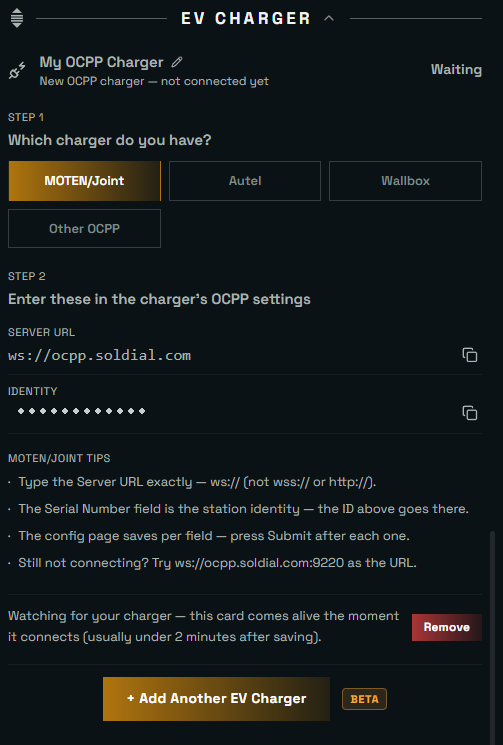
- Give it a name (that’s just what SolDial calls it), then pick your brand: Autel, MOTEN/Joint, Wallbox, or Other OCPP.
- SolDial shows a Server URL and a unique identity for your charger, with exact steps for your brand. Enter them in the charger’s own settings (a config page or the maker’s app), and the SolDial card comes alive the moment the charger connects — usually under two minutes.
Autel tips: type the Server URL with its trailing slash (wss://ocpp.soldial.com/) — Autel firmware rejects the address as invalid without one. Autel’s app labels the fields OCPP Server / Central System URL and Charge Point ID (that’s your SolDial-generated identity). Restart the charger after saving; it reconnects within a minute.
MOTEN / Joint tips: the config page saves each field separately — press Submit after every field. The Serial Number field is the charger’s identity: your SolDial-generated ID goes there. Type the Server URL exactly as shown (it starts ws://, not http://).
Wallbox tips: enable OCPP in the myWallbox portal or app (Settings → OCPP), then paste the URL and ID. While OCPP is on, Wallbox pauses some of its own app’s smart-charging features — SolDial takes over that role.
Honest remote control
Every charger brand implements OCPP a little differently, so a newly connected charger is marked “remote start/stop untested” until proven. The first time you try a command, SolDial asks whether the charger actually responded — It worked clears the notice and marks the model confirmed; Nothing happened tells us to dig in, and the AI stops proposing control actions for that charger (monitoring and alerts keep working either way). This keeps SolDial honest about what it can really do on your hardware.
Troubleshooting
- Card stays “Waiting”: re-check the Server URL character by character (a pasted URL from email can be rewritten by the mail service — type it by hand), confirm every field was submitted, and restart the charger. Some firmware needs the alternate URL shown in the setup tips (a
:9220port form). - Charger shows Offline: it lost WiFi or power — SolDial reconnects automatically when it comes back. Build a “goes offline → notify me” automation if you want to hear about it.
- Start/Stop doesn’t respond: answer the in-app “did the charger respond?” prompt so it’s tracked, and reach out from Account → Help — charger firmware varies, and reports like this are exactly how new models get confirmed.
- Car won’t charge when plugged in: check the charger card’s Auto-start switch is on, or start the session manually / with an automation.
Requirements
- An EV charger that supports OCPP 1.6J and lets you set its OCPP server (most non-Tesla wall chargers: Autel, MOTEN, Joint, Wallbox, and many others).
- The charger on your home WiFi with internet access.
- Viewing is included for everyone; start/stop control is SolDial Pro.