SolDial on the web
Your whole Tesla energy system on a desktop screen. What it does, what it doesn't, and how to open it.
Opening it
Open app.soldial.com on a computer and sign in with the same account you use in the app. If you're already signed in, going to app.soldial.com takes you straight there. SolDial on the web is part of SolDial Pro; subscriptions are bought in the phone app, and Pro unlocks on the web automatically.
What you get
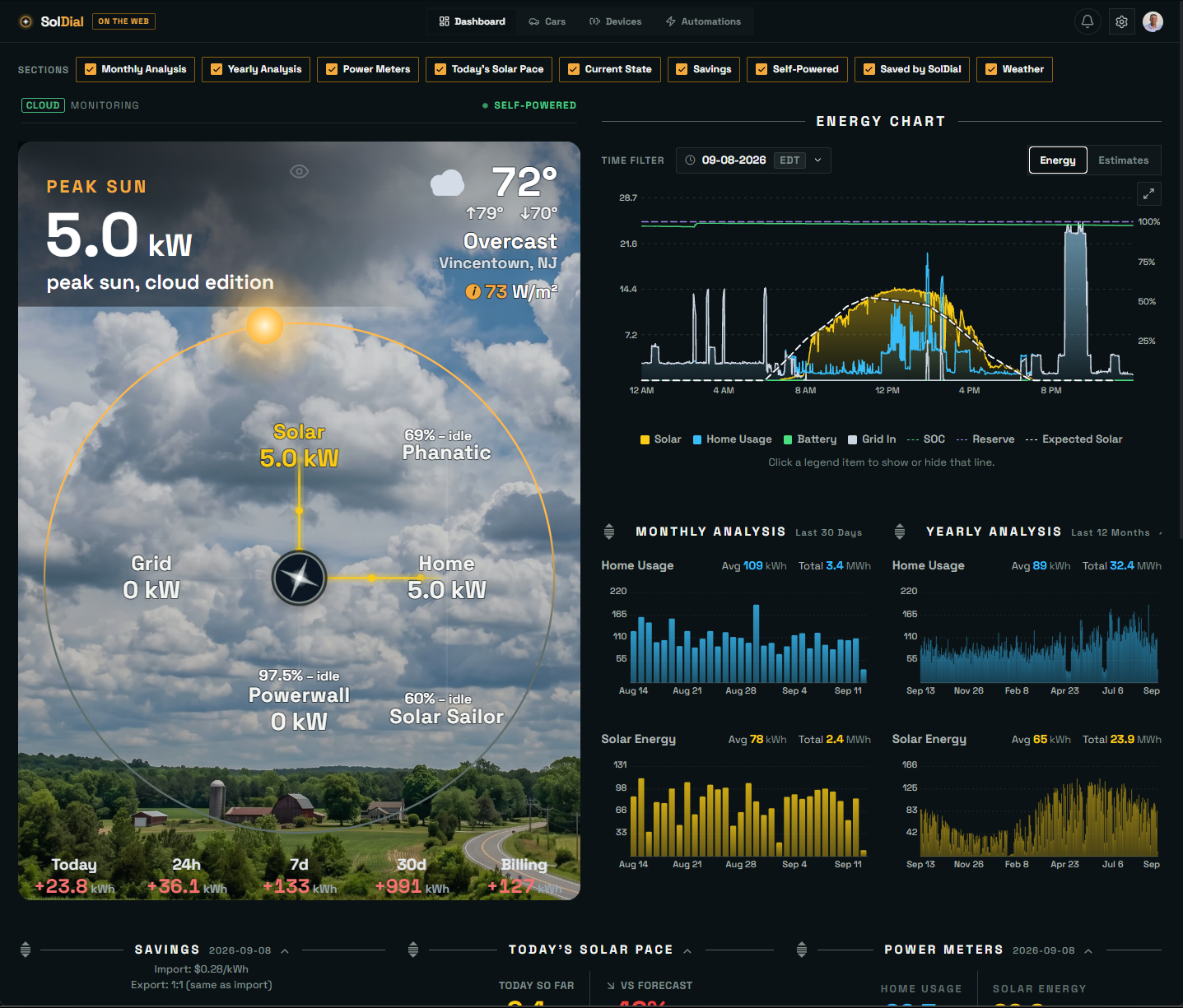
The live power-flow dial sits on the left at the full height of your window, under the same real sky the app shows. Beside it is the Energy Chart, which you can expand to fill the screen. Monthly and Yearly Analysis sit directly underneath the chart, and Power Meters, Today's Solar Pace, Current State, Savings, Self-Powered, Saved by SolDial and Weather fill a grid below.
Cars, Devices, Automations and Settings are all there: charge limits and schedules, backup reserve, Storm Watch, Autopilot, and building or editing automation rules.
Arranging it
Drag any section by the handle to the left of its title to move it, or click the title to collapse it. The Sections row along the top controls what appears at all — uncheck anything you don't want. Your web layout is remembered separately from your phone's, so tidying one never disturbs the other. The one setting that does follow you is the Energy Chart's Energy / Estimates choice.
What stays in the app
Connecting your Tesla account, pairing your Powerwall for local access, home-screen widgets, the watch apps and push notifications all live in the phone app. Buying Pro happens in the app too. On a phone browser, app.soldial.com points you to the app rather than loading the desktop layout, because the app is the better experience on a small screen.
Installing it as an app
In Chrome or Edge on a desktop, an install icon appears at the right-hand end of the address bar. Click it, confirm, and SolDial installs onto your computer.
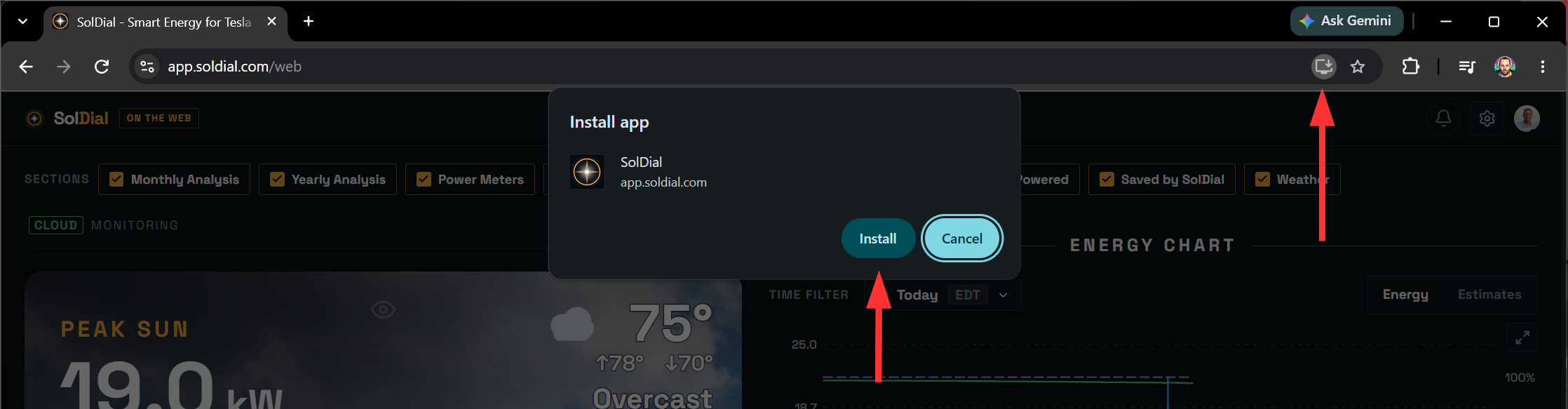
It then behaves like any other program: its own window with no tabs or address bar, an icon you can pin to your taskbar, and it opens straight to your dashboard. On a Mac it lands in your Dock, either from Chrome's install icon or Safari's Share menu under Add to Dock. It isn't a separate download — it's the same web dashboard in a tidier frame, so it stays current on its own and uses the session you're already signed in with.